# Select what kind of permission you want. There are a number of different permissions, ten for WCUs and one to give permission to all tasks (the task permission can not be modified). The permissions are:
# Select what kind of permission you want. There are a number of different permissions, ten for WCUs and one to give permission to all tasks (the task permission can not be modified). The permissions are:
## '''Task'''. Controls if a user is permitted to create/see tasks of a specific type on a WCU. More what this means is discussed below in "[https://wiki.alkit.se/wice270/index.php?title=Roles_and_permissions#Permission_for_specific_tasks Permission to specific tasks]"
## '''Task'''. A special permission which is used to give users access to every existing task in the system. Typically only used for admins.
## '''Assignment Creator'''. This permission handles access to creating/editing/viewing assignments in the tab Assignment (see [[Signal Reader Assignment Wizard|signal reader]] and [[Area5 Assignment Wizard|Area5]]). Having a read-permission means that you can see a list of assignments but you cannot go ahead and edit or create them. A write-permission on the other hand makes you eligible to edit and create assignments. Currently, the permission is only relevant for signal reader and Area5.
## '''Assignment Creator'''. This permission handles access to creating/editing/viewing assignments in the tab Assignment (see [[Signal Reader Assignment Wizard|signal reader]] and [[Area5 Assignment Wizard|Area5]]). Having a read-permission means that you can see a list of assignments but you cannot go ahead and edit or create them. A write-permission on the other hand makes you eligible to edit and create assignments. Currently, the permission is only relevant for signal reader and Area5.
## '''Vehicle Profile'''
## '''Vehicle Profile''' See [[#Vehicle Profile permission]]
## '''WCU Task'''
## '''WCU Task''' Controls if a user is permitted to create/see tasks of a specific type on a WCU. More what this means is discussed below in "Permission to specific tasks"
## '''WCU Configuration.''' This permission controls whether you are allowed to work with a WCU's configuration.
## '''WCU Configuration.''' This permission controls whether you are allowed to work with a WCU's configuration.
## '''WCU Module'''. The permission controls the access to individual module configurations on a WCU. An example of a module is Signal reader.
## '''WCU Module'''. The permission controls the access to individual module configurations on a WCU. An example of a module is Signal reader.
Line 30:
Line 30:
## '''WCU View'''. This permission applies to the Vehicles tab. It has to do with whether you are allowed to list a WCU in the table. Selecting this subtype makes the subtype type part unnecessary and therefore, it is removed if you choose this resource type.
## '''WCU View'''. This permission applies to the Vehicles tab. It has to do with whether you are allowed to list a WCU in the table. Selecting this subtype makes the subtype type part unnecessary and therefore, it is removed if you choose this resource type.
##'''WCU Connect'''. Allows a user to connect a WCU to a vehicle.
##'''WCU Connect'''. Allows a user to connect a WCU to a vehicle.
##'''Vehicle Create'''
##'''Vehicle Create''' See [[Roles and permissions#Vehicle Create permission|#Vehicle Create permissions]]
##'''Resource Group Manage'''
##'''Resource Group Manage''' See [[#Resource Group Manage permission]]
##'''Resource Group Create'''
##'''Resource Group Create''' See [[#Resource Group Create permission]]
##'''View Inactive WCU'''
##'''View Inactive WCU''' Allows a user to view inactive WCUs.
##'''View Inactive Vehicle'''
##'''View Inactive Vehicle''' Allows a user to view inactive vehicles.
##'''Vehicle Edit'''
##'''Vehicle Edit''' Allows a user to edit vehicles.
# Choosing if the permission should be a read and/or write permission. One of these have to be selected or you will not be able to save changes.
# Choosing if the permission should be a read and/or write permission. One of these have to be selected or you will not be able to save changes.
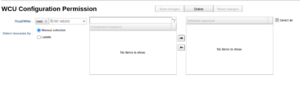
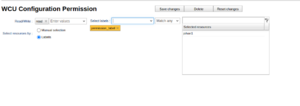
# Selecting which resources that apply to the permission. The selection is made using the two tables you see in Figure "Editing Task Permissions". To select a resource, which can be a resource group, you enter the name of the resource in the left table filter area. As you type, the table is automatically filled with resources matching the criteria. If a resource is part of a resource group the icon to the left is shown. If you hold the mouse over the resource name you will see which resource group it is part of. If you instead see the icon shown to the left, the resource is a resource group. Holding the mouse over the entry will show you which resources are part of the resource group. To select a resource, drag it over to the right table or select the resource and then press the right-arrow. To deselect a resource, drag it to the left table or press the left-arrow. There is a “Select all” option. It selects all current and future resources to which this permission should be applied. [[File:Labels in permissions1.png|thumb|Select resources by labels]][[File:Permission label2.png|thumb|Resource selected by label]]From version 2.93 of the WICE portal it is also possible to let labels select the resources that will be part of the permission. When a label is selected as in the screenshot to the right, the WCUs which are currently associated with the label are added to the set of selected resources. Multiple labels can also be used to either collect more resources or narrow down the resources depending on the chosen relation between the labels. After the permission has been saved, any additional resources which get associated with the labels used in the permission will automatically be added to the permission. Since these labels now controls one or many permissions, only the users with the role admin can add or remove the labels from resources as long as they are part of any permission.
# Selecting which resources that apply to the permission. The selection is made using the two tables you see in Figure "Editing Task Permissions". To select a resource, which can be a resource group, you enter the name of the resource in the left table filter area. As you type, the table is automatically filled with resources matching the criteria. If a resource is part of a resource group the icon to the left is shown. If you hold the mouse over the resource name you will see which resource group it is part of. If you instead see the icon shown to the left, the resource is a resource group. Holding the mouse over the entry will show you which resources are part of the resource group. To select a resource, drag it over to the right table or select the resource and then press the right-arrow. To deselect a resource, drag it to the left table or press the left-arrow. There is a “Select all” option. It selects all current and future resources to which this permission should be applied. [[File:Labels in permissions1.png|thumb|Select resources by labels]][[File:Permission label2.png|thumb|Resource selected by label]]From version 2.93 of the WICE portal it is also possible to let labels select the resources that will be part of the permission. When a label is selected as in the screenshot to the right, the WCUs which are currently associated with the label are added to the set of selected resources. Multiple labels can also be used to either collect more resources or narrow down the resources depending on the chosen relation between the labels. After the permission has been saved, any additional resources which get associated with the labels used in the permission will automatically be added to the permission. Since these labels now controls one or many permissions, only the users with the role admin can add or remove the labels from resources as long as they are part of any permission.
Line 55:
Line 55:
==== Resource Group Create permission ====
==== Resource Group Create permission ====
This permission enables a user to create resource groups by pressing Add New in the Resource groups panel of the Administration tab. It will also enable access to the Resource groups panel. Any permissions that may be needed to initially manage or edit the created resource group will be added to a role specific to the creator upon creating the group.
This permission enables a user to create resource groups by pressing Add New in the Resource groups panel of the Administration tab. It will also enable access to the Resource groups panel. Any permissions that may be needed to initially manage or edit the created resource group will be added to a role specific to the creator upon creating the group.
==== WCU View permission ====
This permission controls whether a user can view or modify a WCU through read or write access.
* Users with '''read''' permission can view all or selected WCUs in the ''Vehicles'' tab.
* Users with '''write''' permission can edit WCU settings and values.
* Users without this permission can still open the ''Edit WCU'' view and see the settings, but they cannot modify any values.
==== Vehicle Edit permission ====
This permission allows the user to edit a vehicle.
Similar to the ''WCU View Write'' permission, users without this permission can still open the ''Edit Vehicle'' view from the ''Vehicles'' tab and view the vehicle details, but they cannot modify any values.
=== Selecting resources using uploaded file ===
=== Selecting resources using uploaded file ===
Line 109:
Line 121:
The bottom selection from above 'Add who can see task' will not list who already has access to the task, but rather just list all users available regardless whether they already have permission or not to the task.
The bottom selection from above 'Add who can see task' will not list who already has access to the task, but rather just list all users available regardless whether they already have permission or not to the task.
You can also give a user permission to all running tasks on WCUs whose task types that user has access to. See [[The Portal Administrator View#The New User Dialog|The new user dialog]] (the portal administrator view).
You can also give a user permission to all running tasks on WCUs whose task types that user has access to. See [[The Portal Administrator View#The New User Dialog|The new user dialog]] (the portal administrator view).<gallery>
</gallery>
==== Add permission to historical tasks on permission update ====
[[File:Add permission to existing tasks on permission update.png|thumb|Add permission to existing tasks on permission update]]
From version 2.98 of the WICE portal it is possible to give users access to existing tasks when updating the WCU Task permission. See screenshot "Add permission to existing tasks on permission update". In "Apply updated permission" it is possible to select the desired task statuses (for example only running tasks, stopped tasks etc) to apply the permission update to. For some environments all, or a subset of, statuses are preselected as default values. When saving this permission with "Selected resources" checked, any existing task having the the desired statuses on the WCUs in the list of 'Selected resources' will be accessible for the users with the current permission. This is the same as searching for the WCUs of interest in the Tasks tab and manually adding permissions to these tasks via "Show who can see task" discussed in [[#Top selection "Show who can see task"]].
Note that applying updated permission to tasks always applies to all resources in 'Selected resources' so it is not possible to a subset of the resources.
==== '''Remove permission to historical tasks on permission update''' ====
As discussed in [[Roles and permissions#Permission for specific tasks|Permission for specific tasks]] a user has access to a historical task on a WCU even if that WCU is removed from the WCU Task permission. To remove the permission for historical tasks one have to lists the tasks in the Tasks tab, use "Show who can see task" and remove the users manually.
[[File:Remove permission for existing tasks.png|thumb|Remove permission for existing tasks when updating a WCU Task permission]]
Similar to "Add permission to historical tasks on permission update" discussed above, this can from version 2.98 be done when updating a WCU Task permission. In the screenshot "Remove permission for existing tasks when updating a WCU Task permission" the WCU "johan4"is removed from the permission. In "Apply updated permission" 'Remove resources" is selected along with all existing Task statuses. This will remove access to any existing tasks on 'johan4' for the users having the role the current permission is part of.
Like for "Add permission to historical tasks on permission update" the list of desired Tasks statuses might be preselected as default values.
==== '''Add permission to historical tasks when WCU is added to resource group''' ====
If a resource group is used in a WCU Task permission (WTP) (like the group 'johan1_grupp' in the screenshots mentioned before) any resource part of the group is also included in the permission. When adding a new WCU to a group that is part of a WTP users will from version 2.98 have the option to give access to any existing tasks on the WCU when the WCU is added to the group. The logic is the same as when a WCU is added to a permission described in [[#Add permission to historical tasks on permission update]]. An example of this can be seen screenshot "Add WCU to group used in WCU Task permission" where all users having the mentioned role will be given access to any 'Pending' or 'Running' tasks matching the individual WCU Task permission defined in the role.
So in this case, if the role 'assignment_task' defines a WTP with read access to SoH tasks and the WCU johan4 has a task of type SoH with the status Pending or Running, all users with the role 'assignment_task' will be given access to these SoH tasks.
==== '''Remove permission to historical tasks when WCU is removed from resource group''' ====
Similar to when adding a WCU to a resource group used in a WCU Task permission (WTP) mentioned above, access to tasks on WCUs can be revoked when the WCUs are removed from the resource group. In the screenshot "Remove WCU from resource group used in WCU Task permission" a WCU is removed from the group 'johan1_grupp' and all Tasks status types are selected which means that all access to any tasks on the WCU will be revoked for the users having the mentioned roles.
==== '''Add permission to historical tasks when WCU is associated with permission controlled label''' ====
[[File:Add WCU to group used in WCU Task permission.png|thumb|Add WCU to group used in WCU Task permission]]
[[File:Remove WCU from resource group used in WCU Task permission2.png|thumb|Remove WCU from resource group used in WCU Task permission]]
[[File:Add label used in WAP to WCU.png|thumb|Associate label used in WCU Task permission with a WCU]]
As mentioned in [[#Creating and editing roles and permissions]], labels can be used in permissions to define the resources that are part of the permission. So when association WCU with a label that is used in a permission the WCU is added to the permissions resources. When associating a label used in a WCU Task permission (WTP) with a WCU it is from version 2.98 possible to give users of the related roles access to any existing tasks on the WCU similar to when adding a WCU to resource group described in [[#Add permission to historical tasks when WCU is added to resource group]]. An example of this can be seen in screenshot "Associate label used in WCU Task permission with a WCU".
==== '''Remove permission to historical tasks when permission controlled label is removed from WCU''' ====
[[File:Remove label used in WCU Task permission from WCU.png|thumb|Remove label used in WCU Task permission from WCU]]
Similar to when removing a WCU from a resource group used in a WCU Task permission described in [[#Remove permission to historical tasks when WCU is removed from resource group]] it is possible to remove access to any existing tasks on the WCU the label is removed from. In screenshot "Remove label used in WCU Task permission from WCU" the label TP2 is removed from the WCU and all Task status types are selected. This means that all users with the role '''task_permission_label''' will have the access revoked on all historical tasks matching the task types defined in the permission for this WCU. So, if the permission defines access to SoH tasks for resources with the label TP2, then the access to all SoH tasks on WCU will be revoked.
{{DEFAULTSORT:Rolas and Permissions}}
{{DEFAULTSORT:Rolas and Permissions}}
Latest revision as of 06:55, 21 May 2026
In order to restrict access to resources and functions in the portal, there is a framework using roles and permissions. Permissions are given on a set of resources. These permissions are grouped into roles, and roles are then attached to one or several users to be granted specific permissions.
The “Edit roles and permission” dialog can be seen in Figure "Edit Roles and Permissions Dialog". It consists of three tables. The top left table holds a list of the roles, the top right holds the user(s) for the selected role and the bottom one hold the selected role's permissions. Their size is adjustable and you can minimize them by clicking on the line between them.
Edit Roles and Permissions Dialog
You add a new role by pressing the button “Add role” and delete a role along with its permissions by pressing the red button next to it. When making a role you add a description and unique name. To edit an already existing role, double click the entry you wish to edit.
When you select a role in the top left table, the lower table shows that specific role's permissions and the upper right table shows which users have that role. The permissions table consists of two columns, a string that is the actual permission and the set of resources that apply to that permission.
To create a new permission press the “Add permission” button. It opens the following interaction depicted in Figure "Creating New Permission".
Editing Task Permissions
Select what kind of permission you want. There are a number of different permissions, ten for WCUs and one to give permission to all tasks (the task permission can not be modified). The permissions are:
Task. A special permission which is used to give users access to every existing task in the system. Typically only used for admins.
Assignment Creator. This permission handles access to creating/editing/viewing assignments in the tab Assignment (see signal reader and Area5). Having a read-permission means that you can see a list of assignments but you cannot go ahead and edit or create them. A write-permission on the other hand makes you eligible to edit and create assignments. Currently, the permission is only relevant for signal reader and Area5.
WCU Task Controls if a user is permitted to create/see tasks of a specific type on a WCU. More what this means is discussed below in "Permission to specific tasks"
WCU Configuration. This permission controls whether you are allowed to work with a WCU's configuration.
WCU Module. The permission controls the access to individual module configurations on a WCU. An example of a module is Signal reader.
WCU Monitor. A task can have a monitor function to report data in real time. In order to see the real time data the user must have this permission.
WCU Plot route. To see a historic GPS track of a WCU a user must have this permission.
WCU Position. Allows a user to see a WCU's current position.
WCU Shelving. Allows a user to handle any shelving, unshelving and refurbishing of a WCU.
WCU View. This permission applies to the Vehicles tab. It has to do with whether you are allowed to list a WCU in the table. Selecting this subtype makes the subtype type part unnecessary and therefore, it is removed if you choose this resource type.
WCU Connect. Allows a user to connect a WCU to a vehicle.
View Inactive WCU Allows a user to view inactive WCUs.
View Inactive Vehicle Allows a user to view inactive vehicles.
Vehicle Edit Allows a user to edit vehicles.
Choosing if the permission should be a read and/or write permission. One of these have to be selected or you will not be able to save changes.
Selecting which resources that apply to the permission. The selection is made using the two tables you see in Figure "Editing Task Permissions". To select a resource, which can be a resource group, you enter the name of the resource in the left table filter area. As you type, the table is automatically filled with resources matching the criteria. If a resource is part of a resource group the icon to the left is shown. If you hold the mouse over the resource name you will see which resource group it is part of. If you instead see the icon shown to the left, the resource is a resource group. Holding the mouse over the entry will show you which resources are part of the resource group. To select a resource, drag it over to the right table or select the resource and then press the right-arrow. To deselect a resource, drag it to the left table or press the left-arrow. There is a “Select all” option. It selects all current and future resources to which this permission should be applied. Select resources by labelsResource selected by labelFrom version 2.93 of the WICE portal it is also possible to let labels select the resources that will be part of the permission. When a label is selected as in the screenshot to the right, the WCUs which are currently associated with the label are added to the set of selected resources. Multiple labels can also be used to either collect more resources or narrow down the resources depending on the chosen relation between the labels. After the permission has been saved, any additional resources which get associated with the labels used in the permission will automatically be added to the permission. Since these labels now controls one or many permissions, only the users with the role admin can add or remove the labels from resources as long as they are part of any permission.
Set what type of tasks the permission applies to. It is automatically set to have all selected but you can unselect all and selecting other tasks. This option is only available on the WCU task, assignmentcreator,monitor and module permissions. It corresponds to the set of available modules for a WCU.
When you are done press "Save changes" or "Reset changes" if you want to revert the changes. You can always edit the permission by selecting it in the table. The dialog described above will show and you can make your changes, except that you can not change what type of task it is.
Assignment Creator permission
This permission concerns the signal reader assignment editor. If you give the user a read permission they can look at already created assignments. If you give a user the write permission they will also be able to create and delete assignments.
Vehicle Profile permission
With this permission you can delegate to individual users the possibility to view vehicle profiles if given the read permission. This makes the tab visible in the GUI but all buttons concerning editing/adding/removing are disabled. If a user has the write permission as well, the user will be able to edit/add and remove vehicle profiles.
Vehicle Create permission
This permission enables a user to do Add Vehicle. This will also let a user view any disconnected vehicles in the vehicles tab.
Resource Group Manage permission
This permission enables a user to manage resource groups. Managing resource groups entails adding and removing WCUs from groups, editing groups, and removing groups. It will also enable access to the Resource groups panel.
Resource Group Create permission
This permission enables a user to create resource groups by pressing Add New in the Resource groups panel of the Administration tab. It will also enable access to the Resource groups panel. Any permissions that may be needed to initially manage or edit the created resource group will be added to a role specific to the creator upon creating the group.
WCU View permission
This permission controls whether a user can view or modify a WCU through read or write access.
Users with read permission can view all or selected WCUs in the Vehicles tab.
Users with write permission can edit WCU settings and values.
Users without this permission can still open the Edit WCU view and see the settings, but they cannot modify any values.
Vehicle Edit permission
This permission allows the user to edit a vehicle.
Similar to the WCU View Write permission, users without this permission can still open the Edit Vehicle view from the Vehicles tab and view the vehicle details, but they cannot modify any values.
Selecting resources using uploaded file
As described above, you can select resources in the select resources widget. In addition to this, you can upload a file containing the vehicles or WCUs that you would like to apply to a permission or a set of permissions. By pressing the button called 'Import vehicle file' you will be presented with a dialog where you can upload a file containing multiple vehicles or WCUs. You can either upload an excel file or a CSV type of text file. What is important is that there is a header column saying what type of identifiers can be found in the file. Identifiers currently supported are: vin, plate or wcu. An example content of file (CSV):
wcu
04-1B-35-98
90-80-AA
Import a vehicle file for permission resource selection
Just by changing the heading to plate or vin you should reference such identifiers in the file. The dialog also presents the option to ignore resources not found and apply the changes for those found. The default is however to do nothing if any of the resources are not found. The checkbox 'Ignore unconnected vehicles' is only applicable if you have plate or vin identifiers.
If you have selected a permission in the permission table, the resources in the file will be applied to only the selected permission. If you have selected a role in the top leftmost table, the resources in the file will be applied to all permissions of the role.
Changing a users roles and permissions
You can change a user's roles under in the edit user dialog if you press the button "Edit user roles". The edit user dialog then gets extended as two boxes appear, a left one with available roles and a right one with current roles. In the left one you can search the role(s) you want and drag them to the right box or press the button pointing right. With the two buttons at the bottom corner(the paper and clipboard ones) you can copy the names of the roles and also insert the names of roles to add them.
You can also change a users permission to view tasks in the tasks tab: By right-clicking the task(s) you want to change permissions for and hovering over "Permission" you will get the options "Show who can see task" and "Add who can see task". "Show who can see task" will open a window with a left and a right box where the left contains users without permission to view the task and the right contains users who have permission. By moving users from the left to right and vice versa you can give or remove someones permission. You can also press the clipboard the the right bottom to copy the users who have permissions or add users by writing their name within parentheses. Users in the right box can be unselectable and that is if they have a role giving them the permission to view that task the only way to remove that is to remove that role from them. "Add who can see task" works the same way as "Show who can see task" except that the right box does not show users with permission so you can not remove permissions, this is so that with add you can add permissions for many tasks at the same time as the show can not show users from many tasks.
Copy User Task Permissions Dialog
You can also edit a users role by searching for user(s) and right clicking on them to get a window with different options. There are five different options where the three first can be used on multiple users at the same time while the bottom two can not.
"Add user task permissions to this user" will open the dialog shown in Figure "Copy User Task Permissions Dialog". With this button you take a user's task permissions and add them to the selected user(s). You do this by searching and selecting a user and then pressing "OK".
"Replace user task permissions with user" will open a similar dialog to the one in Figure "Copy User task Permissions Dialog". This button is much like the one before except that instead of adding permissions to the current user this replaces the permissions that the selected user(s) have. Here you also search the user whose permissions you want to replace the select them and press "OK".
"Copy user roles to this user" will open a similar dialog to Figure "Copy User Task Permissions Dialog". Instead of replacing permissions, this dialog replaces selected user(s) roles with the roles of a user who you chose. Search the user whose roles you want to copy for replacement and press "OK".
Give Permission on Vehicle Dialog
"Give this user permission to all tasks on vehicle" gives task permission on one or many vehicles. The dialog will look like the dialog in Figure "Give Permission on Vehicle Dialog". In the left box you select vehicles and move them to the right to give permission on them, you can also as you see below the left box select a file with vehicles to easily select a set of vehicles. Then you select which types of tasks it should give permission to (leaving this empty will not give any permissions). You can also check the checkbox "Reset user permission" to replace the roles of the selected user instead of adding new to the current ones.
"Give this user permission to all tasks on WCU" is identical to the previous button except that it applies to WCUs instead of vehicles.
User specific roles
A role may also be set to be specific to just one user. Doing this will remove the role from any other users that currently have it as well as prevent adding the role to any other users but the specified user.
Permission for specific tasks
The above text discuss permissions as they are found from the User panel. There are also a set of "implicit" permissions created when a new task is created, based on the task type permission discussed above. Let us elaborate a bit on this to make it clear what it means. The use case is as follows; a user has a read task permission on a WCU ("wcu:assignment:soh:read:awcu"). (Observe that a task permission might contain the word "assignment" even if it is referring to a task. Look at the menu names instead to confirm that you are working with a task.) Let us say that a new state-of-health task is created on the WCU ("awcu") while the user has the above permission. Regardless of who created the task, the user will now be able to list this task in the Tasks panel and download any data produced. Later, as time goes by, the WCU is no longer used in the particular project and an administrator removes the permission "wcu:assignment:soh:read:awcu" from the user. When new tasks are created on this WCU our user above will not be able to see the new tasks created in the Tasks panel. However, the user will be able to see the previous task, i.e. when the user had the correct permission. Thus, this solution enables users to retain the permission to see historical tasks, let us call this a historical task permission. This type of permission cannot be seen in the permission panel. To see who has access to which historical task you must turn to the Task panel.
Permission Choices in the Tasks Panel
As an administrator you have the possibility to both see and modify who has access to individual tasks. There are two options presented if you right-click an task in the Tasks panel. To the right you see the two choices available. The top choice is only available if you have selected a single row in the table. The bottom one is always available, also if electing multiple rows.
Top selection "Show who can see task"
By selecting the top selection you will be presented with a dialog where on the left hand side you have all available users that do not have the permission to see the task. On the right hand side you have the users that have the permission to do so. On the right hand side you might see that some users are grayed. Those users have the task permission, not to be confused with the WCU task permission, described above. Also, the users visible are enabled, disabled users will not be displayed.
Users with Permission on a Specific Task
To give a user the permission to see the task, simply move the user from the left side to the right side. This is accomplished by selecting one or more users and then click the right-arrow. Conversely, to remove a user from the permission select the users from the right side and click the left-arrow. At the top of the left side you can search for users by typing and as you go the users will be filtered to match what you type.
In the picture "Users with Permission on a Specific Task" to the right you see the user 'serverTriggerUser' which is an enabled user which do not yet have the permission to see the task.
Bottom selection "Add who can see task"
The bottom selection from above 'Add who can see task' will not list who already has access to the task, but rather just list all users available regardless whether they already have permission or not to the task.
You can also give a user permission to all running tasks on WCUs whose task types that user has access to. See The new user dialog (the portal administrator view).
Add permission to historical tasks on permission update
Add permission to existing tasks on permission update
From version 2.98 of the WICE portal it is possible to give users access to existing tasks when updating the WCU Task permission. See screenshot "Add permission to existing tasks on permission update". In "Apply updated permission" it is possible to select the desired task statuses (for example only running tasks, stopped tasks etc) to apply the permission update to. For some environments all, or a subset of, statuses are preselected as default values. When saving this permission with "Selected resources" checked, any existing task having the the desired statuses on the WCUs in the list of 'Selected resources' will be accessible for the users with the current permission. This is the same as searching for the WCUs of interest in the Tasks tab and manually adding permissions to these tasks via "Show who can see task" discussed in #Top selection "Show who can see task".
Note that applying updated permission to tasks always applies to all resources in 'Selected resources' so it is not possible to a subset of the resources.
Remove permission to historical tasks on permission update
As discussed in Permission for specific tasks a user has access to a historical task on a WCU even if that WCU is removed from the WCU Task permission. To remove the permission for historical tasks one have to lists the tasks in the Tasks tab, use "Show who can see task" and remove the users manually.
Remove permission for existing tasks when updating a WCU Task permission
Similar to "Add permission to historical tasks on permission update" discussed above, this can from version 2.98 be done when updating a WCU Task permission. In the screenshot "Remove permission for existing tasks when updating a WCU Task permission" the WCU "johan4"is removed from the permission. In "Apply updated permission" 'Remove resources" is selected along with all existing Task statuses. This will remove access to any existing tasks on 'johan4' for the users having the role the current permission is part of.
Like for "Add permission to historical tasks on permission update" the list of desired Tasks statuses might be preselected as default values.
Add permission to historical tasks when WCU is added to resource group
If a resource group is used in a WCU Task permission (WTP) (like the group 'johan1_grupp' in the screenshots mentioned before) any resource part of the group is also included in the permission. When adding a new WCU to a group that is part of a WTP users will from version 2.98 have the option to give access to any existing tasks on the WCU when the WCU is added to the group. The logic is the same as when a WCU is added to a permission described in #Add permission to historical tasks on permission update. An example of this can be seen screenshot "Add WCU to group used in WCU Task permission" where all users having the mentioned role will be given access to any 'Pending' or 'Running' tasks matching the individual WCU Task permission defined in the role.
So in this case, if the role 'assignment_task' defines a WTP with read access to SoH tasks and the WCU johan4 has a task of type SoH with the status Pending or Running, all users with the role 'assignment_task' will be given access to these SoH tasks.
Remove permission to historical tasks when WCU is removed from resource group
Similar to when adding a WCU to a resource group used in a WCU Task permission (WTP) mentioned above, access to tasks on WCUs can be revoked when the WCUs are removed from the resource group. In the screenshot "Remove WCU from resource group used in WCU Task permission" a WCU is removed from the group 'johan1_grupp' and all Tasks status types are selected which means that all access to any tasks on the WCU will be revoked for the users having the mentioned roles.
Add permission to historical tasks when WCU is associated with permission controlled label
Add WCU to group used in WCU Task permissionRemove WCU from resource group used in WCU Task permissionAssociate label used in WCU Task permission with a WCU
As mentioned in #Creating and editing roles and permissions, labels can be used in permissions to define the resources that are part of the permission. So when association WCU with a label that is used in a permission the WCU is added to the permissions resources. When associating a label used in a WCU Task permission (WTP) with a WCU it is from version 2.98 possible to give users of the related roles access to any existing tasks on the WCU similar to when adding a WCU to resource group described in #Add permission to historical tasks when WCU is added to resource group. An example of this can be seen in screenshot "Associate label used in WCU Task permission with a WCU".
Remove permission to historical tasks when permission controlled label is removed from WCU
Remove label used in WCU Task permission from WCU
Similar to when removing a WCU from a resource group used in a WCU Task permission described in #Remove permission to historical tasks when WCU is removed from resource group it is possible to remove access to any existing tasks on the WCU the label is removed from. In screenshot "Remove label used in WCU Task permission from WCU" the label TP2 is removed from the WCU and all Task status types are selected. This means that all users with the role task_permission_label will have the access revoked on all historical tasks matching the task types defined in the permission for this WCU. So, if the permission defines access to SoH tasks for resources with the label TP2, then the access to all SoH tasks on WCU will be revoked.